Change or Remove a Giver Number
Use the Manage Giver Numbers screen to change or remove the number already assigned to a Giver. If you are changing or removing numbers for many Givers, it would likely be more efficient to use .
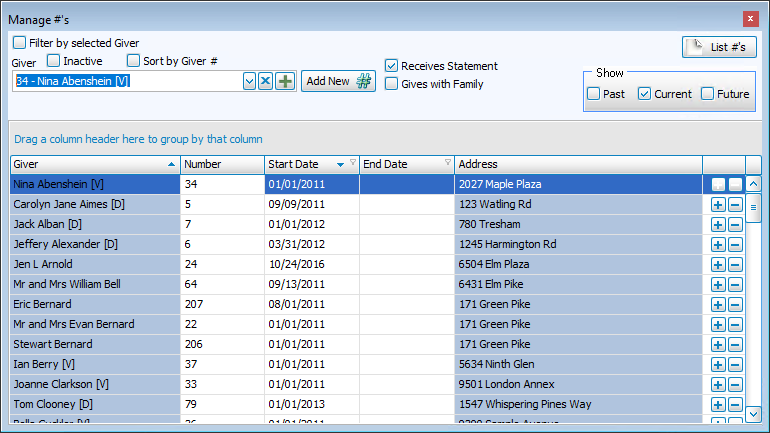
Follow these steps to change or remove the number:
- Find the Giver whose number you want to remove and click the field that contains the number.
- Click in the End Date column of that row and enter the date you want to stop using this number for this Giver.
Note:
Numbers cannot end and start on the same day. For example, for Givers whose number ends on 12/31/YYYY can have a new number start on 1/1/YYYYY.Then press the Enter key on the keyboard and your changes will be saved.
- Alternatively, you can press the
 Delete button at the end of the line and select from three options: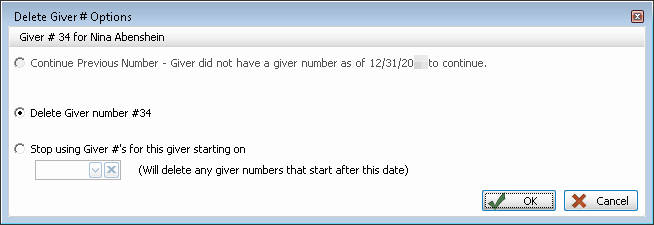
- To Assign Giver Numbers, you can press the
 Add button at the far right to enter a new number or the Add New # button at the top of the screen.
 - When you are finished, click the X in the top right to close. Your changes are automatically saved.
